
If you're looking to track pages on websites that require login authentication, the answer is yes – it is possible. Please note that this feature is only available on paid plans.
How It Works
Monitoring password-protected pages is a two-step process:
- Configure authentication - Set up your login credentials once
- Select when monitoring - Choose the configuration when adding a page to monitor
Step 1: Configure Authentication
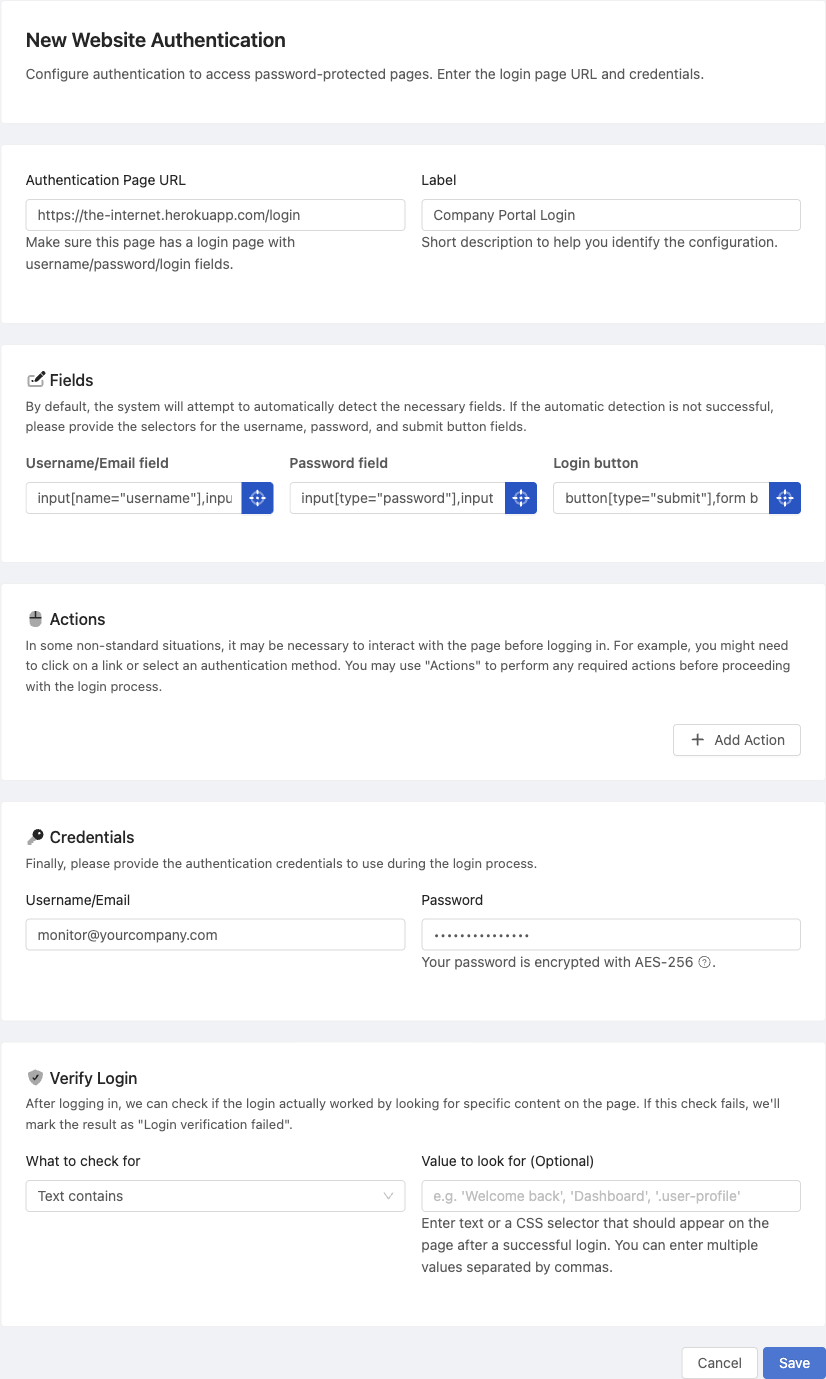
Go to Website Logins and press Add New. Setup is guided and reveals one step at a time:
- Login page - Paste the address of the page with the login form. The name is taken from the site, and you are only asked for a label when you already have another login for the same domain.
- Login fields - We open the page and detect the username box, the password box and the submit button. If detection misses, press Pick the fields on the page and click each one directly. Every selector reports what it matched, so you can see straight away whether it hits one field, several elements, or nothing.
- Credentials - The username and password we sign in with.
- Test - See below. This is the step worth not skipping.
- Login check - How we tell a real sign-in from a rejected one.
If the login form only appears after a step, such as accepting cookies or clicking a "Sign in" link, add that under Pre-login steps. You can do this from inside the field picker, which is usually where you discover you need it.
You can create multiple configurations for different websites.
Step 2: Test the Login Before You Rely On It
Press Test the login. We sign in for real and report the result as a sequence of separate steps, so a failure points at one specific stage rather than the whole thing. You also get a screenshot of where the sign-in ended up.
This matters because a broken sign-in is quiet. A login page returns a normal, working page, so without a test the first sign that something is wrong is a monitor reporting content that looks subtly off.
If a step fails, it tells you which one, and that usually names the fix:
- Could not find a field - the site redesigned its login form. Re-pick the fields.
- Could not click the login button - usually an overlay or cookie banner. Add a pre-login step.
- The password field never appeared - the site asks for the username first. Add the step that reveals it.
- The site asked for a one-time code - turn on one-time codes (see below).
Step 3: Set a Login Check
A login check is a piece of content that only appears once you are signed in, such as a "Sign out" link or your account name. Without one, nothing can distinguish a successful sign-in from a login page that quietly rejected your password, because both return a working page.
After a successful test we suggest options we have already established are safe to rely on. Pick one and it is stored with the configuration. When the check later fails, the result is marked "Login verification failed" instead of being recorded as an ordinary content change.
Avoid anything that is on the page whether or not you are signed in, such as a company name in the header, because it proves nothing. If you would rather set your own value, press Re-check and we will tell you whether it actually distinguishes a real sign-in.
Step 4: Add a Page to Monitor
Once your login is configured:
- Go to add a new page to monitor
- Enter the address of the password-protected page you want to track
- Choose the configuration under Login Authentication
- Complete the rest of the setup as usual
All of the workspace's login configurations are listed, so pick the one matching the site you are monitoring.
Knowing When a Login Stops Working
The Website Logins list shows the last sign-in state for each configuration, so a login that has started failing is visible from the list rather than something you infer from odd content on a monitor. Opening a configuration shows the same state, plus a warning when no login check is set.
A configuration saved part way through setup is marked Draft. It works like any other, but the mark is a reminder that it was never finished or tested.
Can You Also Track Files Behind Login Authentication?
If you want to track files such as PDFs, Excel spreadsheets, CSVs, or Word documents, you're in luck. These types of files can also be tracked, even if they are behind login authentication. Simply provide the link to the file and select the appropriate authentication configuration.
Logins That Require a One-Time Code (2FA)
If a login asks for a one-time code (a two-factor step) after the password, PageCrawl can complete it automatically. On the authentication configuration, turn on Reuse login session, then turn on Sign in with OTP and choose a Code source:
- Authenticator app (TOTP): Paste the authenticator secret from the site's two-factor settings (the "enter this key manually" text shown under the QR code, or the full
otpauth://link). PageCrawl generates the current code at sign-in, the same way an authenticator app does. - Emailed code: Forward the login-code emails to the dedicated address PageCrawl generates for you, or set the site account's email to that address. PageCrawl reads the code and finishes signing in. Set "Only accept codes from" to the sender's email or domain so nothing else is mistaken for a code.
Because the session is reused between checks, the code step only runs on the first sign-in or when the session expires, not on every check.
Note: Emailed codes add a short wait to each sign-in while the forwarded message arrives. The Standard plan has a tighter per-check time budget, so a slow email can cause the check to time out before the code lands. For emailed codes, use the Enterprise or Ultimate plans, which allow longer checks. Authenticator-app codes are generated instantly with no wait, so they work on any paid plan, including Standard.
Authenticator apps and emailed codes are the supported two-factor methods. SMS text-message codes and physical security keys are not supported.
HTTP Basic Authentication
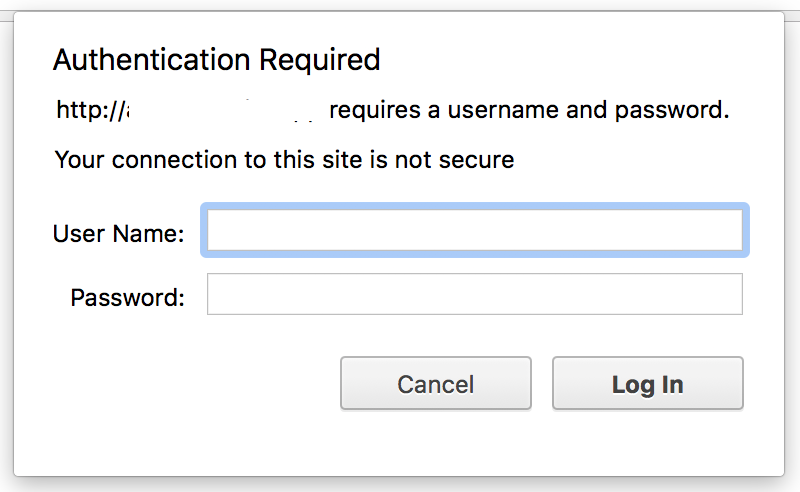
In case the website is using "HTTP Basic Authentication" (the browser popup that asks for credentials), you can enter the credentials under "Advanced Settings" when setting up your monitored page. This is different from form-based login authentication.