A monitor that signs in has one failure mode nobody plans for: the sign-in stops working and the monitoring keeps running. The page still loads. Content still comes back. Alerts still arrive. It is just that everything you are now tracking is the logged-out page.
That failure is quiet by design. A login page returns HTTP 200. It has a title, a body, and text that changes. Nothing about it looks like an error to a monitoring tool, so nothing raises its hand.
The fix is not more monitoring. It is proving the sign-in works at the moment you set it up, and setting a signal that can tell a real sign-in from a rejected one on every check afterwards.
Why does a broken login go unnoticed for so long?
Because a failed sign-in usually produces a perfectly healthy-looking page. When a password stops working, most sites re-render the login form with a small error message. That page has a 200 status, real content, and text that differs from last time, so a monitor reports it as a change rather than a failure.
The tell is subtle: your alerts start describing the wrong thing. A tracked price becomes "Sign in to see pricing". A dashboard summary becomes "Email address, Password, Log in". If you have ever wondered why a monitor suddenly started reporting nonsense, this is usually why.
How do you set up a login without hunting for CSS selectors?
You point at the login page and let the fields be detected. A guided setup opens the page, finds the username box, the password box and the submit button, and fills the three selectors for you. You only pick them by hand when detection fails.
When it does fail, the fallback is visual: the page opens and you click the three fields directly. Each one confirms what it found, so you know straight away whether it landed on the right thing, on several things, or on nothing. That feedback matters more than it sounds, because a field reference that looks perfectly sensible can quietly point at more than one element, and the wrong one gets used.
If the login form only appears after a step, such as accepting cookies or clicking a "Sign in" link, you add that step in the same place rather than hunting for it in a settings panel afterwards.
What does testing the login actually show you?
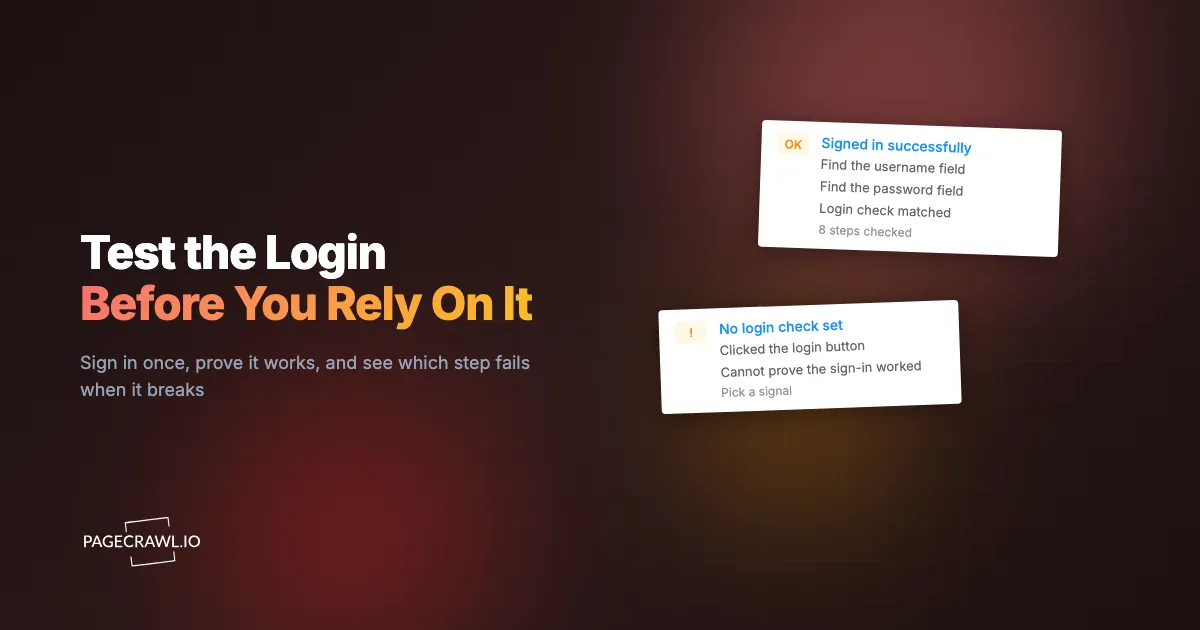
It signs in for real and reports the sign-in as a sequence of separate steps rather than a single pass or fail, so a failure points at one specific stage instead of the whole thing.
That separation is the point. "The login does not work" is not an actionable sentence. "We could not find the password field" and "we clicked the login button but the page never changed" send you to completely different fixes. Without per-step reporting, every one of those failures looks identical from the outside.
You also get a screenshot of where the sign-in ended up, which answers the question a list of steps cannot: is this the dashboard, or is it the login page again?
What is a login check and why does it matter more than the rest?
A login check is a piece of content that only appears once you are signed in. A "Sign out" link. Your account name. A dashboard heading. Without one, nothing can distinguish a successful sign-in from a login page that quietly rejected the password, because both return a working page full of text.
This is the single most important setting in the whole configuration, and it is the one most likely to be skipped, because its value is invisible until the day something breaks. Set it, and a rejected password becomes a visible failed check. Skip it, and the same event becomes a content change you will misread for weeks.
The trap to avoid is choosing something that is on the page either way. A company name in the header, a cookie banner, a footer link: all there whether or not you are signed in, so none of them prove anything. After a successful test PageCrawl proposes options it has already established are safe to rely on, and will tell you when the value you picked yourself is not.
How do you know if a site asks for a one-time code?
You find out when you test, because the sign-in stops at a code screen rather than reaching the account. A site that emails a code or expects an authenticator app will accept your username and password perfectly happily and then ask for something you have not configured yet.
This is worth calling out because of how it looks without a test: the credentials go in, the button click succeeds, and every mechanical step reports success. Only the login check fails, and only if you set one. A test that inspects the resulting screen can tell you the site asked for a code, which turns a confusing result into an obvious next step.
Codes are handled either by forwarding the login-code email to an address we read, or by storing your authenticator secret so the current code can be generated the same way your phone does, following the TOTP algorithm in RFC 6238. Either way, pair it with session reuse so the code step only runs on the first sign-in rather than on every check.
What happens when a login breaks weeks later?
Passwords rotate, sites get redesigned, and accounts get locked. A configuration that worked in June can be broken by August without anyone touching it.
Once a login check is set, a rejected sign-in becomes a failed check with a clear reason rather than a change notification about the wrong page. The website logins list shows the last sign-in state for each configuration, so a login that stopped working is visible from the list instead of being something you infer from odd content on a monitor.
How do you fix a login that stopped working?
Open the configuration and run the test. The step that fails tells you what changed:
- Could not find the username or password field. The site redesigned its login form. Re-pick the fields, or re-run detection.
- Could not click the login button. Usually a cookie banner or overlay arriving before the form. Add a pre-login step to dismiss it.
- The password field never appeared. The site moved to a two-step login that asks for the username first. Add the step that reveals the password field.
- The login check did not match. Either the credentials were rejected, or the site changed the text you were checking for. The screenshot tells you which.
- The site asked for a one-time code. Turn on one-time codes and configure how the code reaches us.
What should you check before trusting a login configuration?
Four things, in order:
- Each of the three fields points at exactly one thing on the page.
- A real test sign-in completes without a failed step.
- A login check is set, and it is confirmed rather than assumed.
- The screenshot from the test shows the signed-in page, not the login form.
The fourth is the one people skip, and it is the one that catches the case where every mechanical step succeeded and you still are not signed in.
A note on what a test can and cannot prove
A successful test is strong evidence, not a guarantee. It proves the selectors resolve, the credentials are accepted, and your login check matches on the signed-in page. It cannot promise the site will behave identically on a scheduled check hours later from a different network, and it cannot predict a redesign.
What it does change is the feedback loop. Without a test, you learn a login is broken when someone notices the content is wrong, which can take weeks. With one, you learn in about a minute, and the failing step tells you what to fix.
If you are setting up your first login, the guide to monitoring password-protected pages walks through the settings in order. For the underlying mechanics of form-based sign-in and why a selector is needed at all, MDN's reference on CSS selectors is the clearest primary source.